YouTube Video
The YouTube Video Advanced Element allows you to embed a YouTube video with more options than WordPress’ built-in video embedding capability. Using this element, videos will be fully responsive and optimized for mobile viewing. It also allows you to modify the video size and alignment.
Example YouTube Video
Adding a YouTube Video
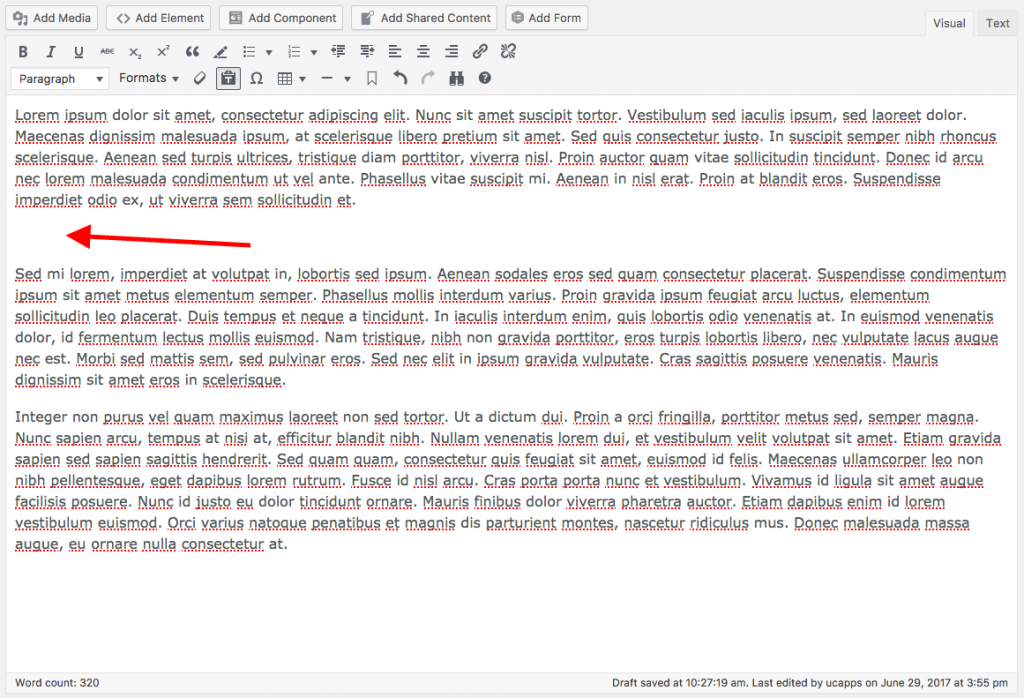
Place your cursor on an empty line in the Rich Text Editor body:
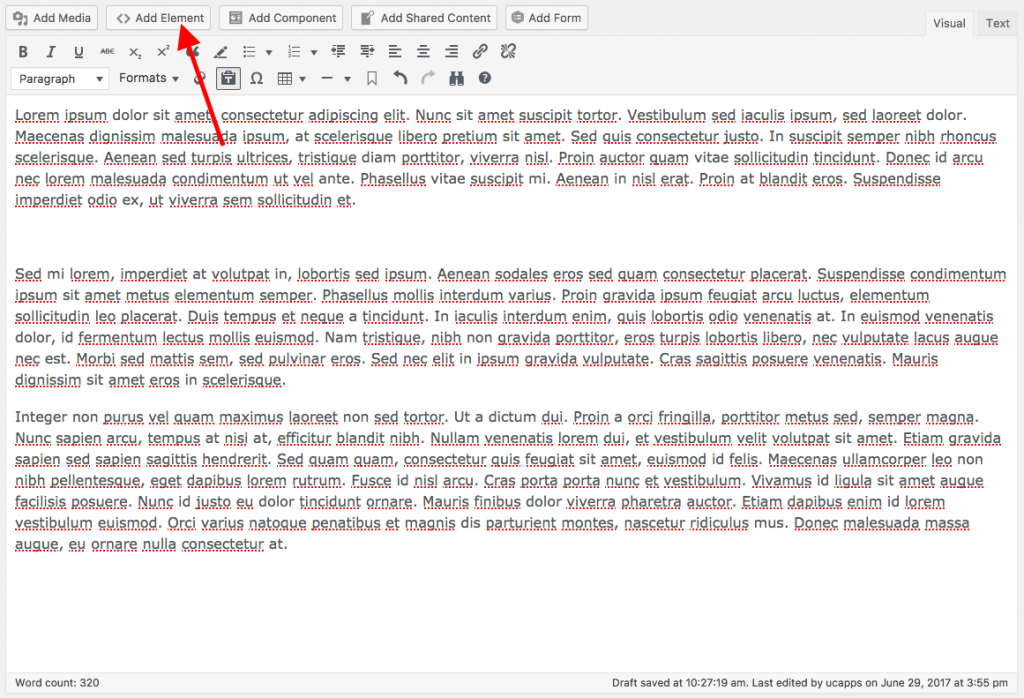
Click the Add Element button located above the Rich Text Editor buttons:
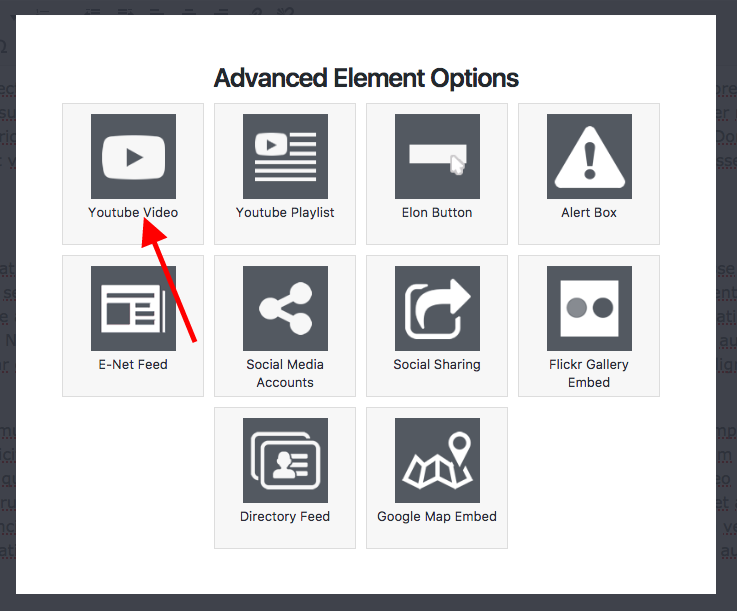
Click the YouTube Video听icon in the Advanced Elements selection tool.
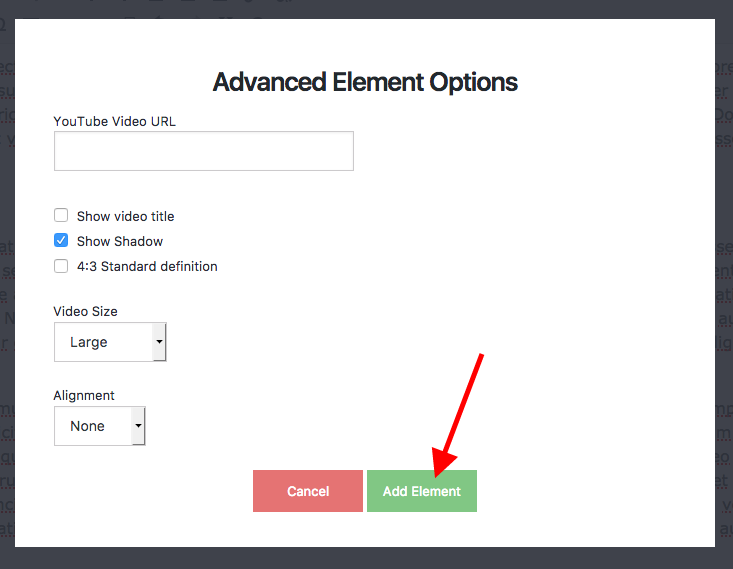
You will now be presented with several options for embedding a YouTube video. At a minimum, paste the video of the YouTube video in the听YouTube Video URL听field.
(滨尘辫辞谤迟补苍迟:听Only use the “watch” URL for a video, and not the other various formats such as the “embed,” “share” or “v” URL’s. For example, use: https://www.youtube.com/watch?v=icva_2Tm4_E, not听https://www.youtube.com/embed/icva_2Tm4_E, or https://youtu.be/icva_2Tm4_E,听http://www.youtube.com/v/icva_2Tm4_E)

Select any other options (detailed below) to customize your YouTube video embed. When you鈥檙e done editing your list, click the green Update Element button.
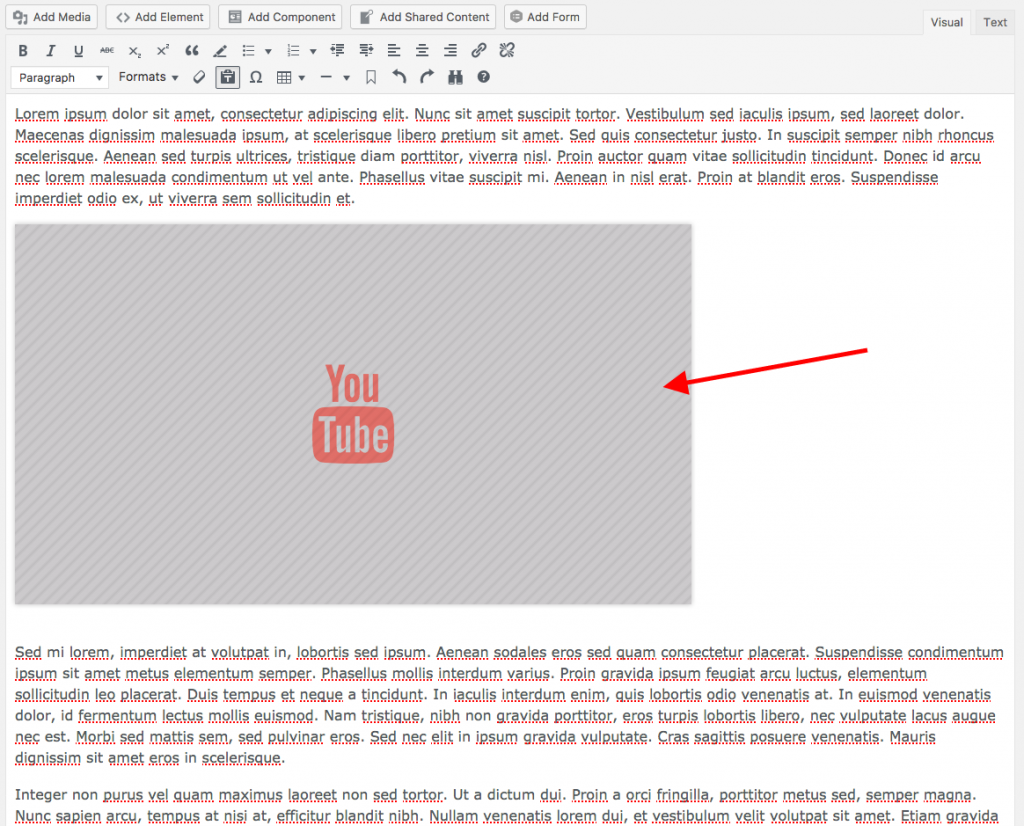
After adding the element, you will see a YouTube placeholder image display in the position where the list will be placed.
Detailed YouTube Video Options
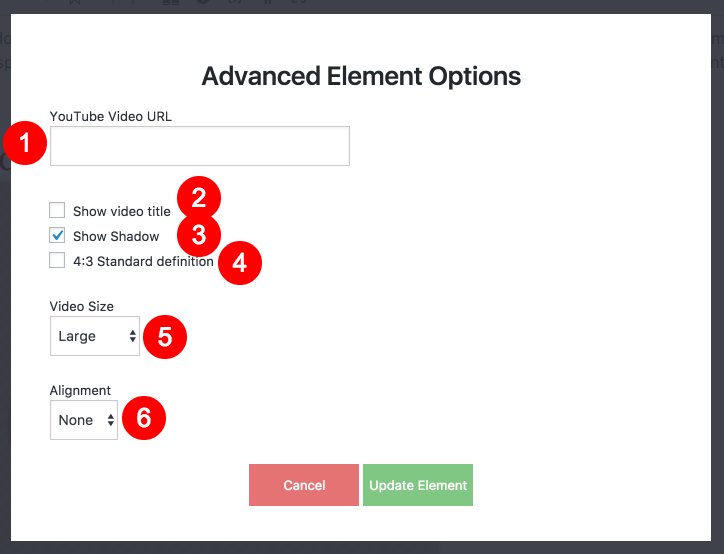
- YouTube Video URL:听The URL of the video you want to embed.
- Show video title:听Selecting this option will display the title of the video in the top left corner of the embed.
- Show Shadow:听Selecting this option will display a subtle shadow around the video.
- 4:3 Standard definition:听Selecting this option will alter the aspect ratio of the video embed.
- Video Size:听The size of the video embed.
- Alignment:听The alignment of the video embed.
Editing an Existing听YouTube Video
To edit an existing YouTube Video embed, simply double click on the placeholder for the video you want to edit. The video element options will display, allowing you to update the settings as necessary. When you鈥檙e finished editing, click the green Update Element button to save your changes.