

Performance Management
Performance Management Reference Guides
- If you miss submitting goals prior to the deadlines, please follow to move your review back into edit mode.
- End of Year Summary and Processing聽
Performance Management Important Notes:
- Please note that an employee and supervisor cannot edit a review at the same time. If one person has the review open, there will be a yellow banner at the top letting the other person know they “cannot edit to prevent conflicts”.
- All emails regarding PageUp: Performance Management will come from an external email: “Employee Relations <employeerelations-1131@mail.pageuppeople.com>”. Please keep an eye out for these communications.
- The review period is January 1 to December 31 annually.
- Yearly reviews can be started early but should not be completed prior to January 1 of the following year.
- Staff who started at Elon on or before August 1 will receive a yearly review.
- Any staff who started on or after August 2 will receive their introductory period review (90-day review) in lieu of the yearly review.
- Staff with faculty rank, please see the user guide for specific instructions for uploading.
2026 End of Year Review Timeline
Through January 29, 2027
- Employees will complete their self-review
- Supervisors complete the supervisor review
- Employees and their supervisors will meet in-person one-on-one to discuss goal progress and the competency assessment.
February: 2027 Reviews are launched
- While separate from the 2025 End of Year Review, the first step of the 2026 review is goal setting, which is due March 18, 2026.
January 29 鈥� February 19, 2027
- Supervisory Chain review 鈥� time in which the supervisory chain will review the reports prepared for them, including goal progression, overall rating and summary comments.
February 19 鈥� February 26, 2027
- Review Sign-off: Supervisor confirms on the 鈥淣ext Steps鈥� screen
February 27, 2027
- Review Complete
If聽you have questions聽after reviewing this timeline, please use the following resources:
- The Performance Management Website for use guides
- 贰尘补颈濒听employeerelations@elon.edu with any questions
Best Practice Tips
- Tip 1:聽
- If you login and the Mid-Year Check-In page still appears locked, please confirm both employee and supervisor have approved the goals from the Goal Setting phase. You may do this by selecting the 鈥淣ext Steps鈥� page.

Figure 1: A screenshot of a menu bar with the tab, “Next steps” circled in red.
- Then scroll down to the yellow box on the right-hand side. It will indicate if and when both parties have approved the goals. If one or both have not clicked the 鈥淚 Agree鈥� button, the review will remain locked for the mid-year check-in. Please communicate with your employees or supervisor if this is the case.
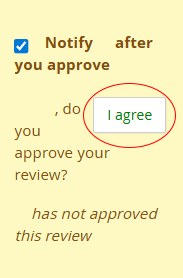
Figure 2: A screenshot of a notification window with the button labeled, “I agree” circled.
- If you login and the Mid-Year Check-In page still appears locked, please confirm both employee and supervisor have approved the goals from the Goal Setting phase. You may do this by selecting the 鈥淣ext Steps鈥� page.
- Tip 2:聽
- Prompt questions are available on PageUp to assist with an engaging conversation. If they do not fit your current situation, please do not feel obligated to answer them. You can always include additional questions.
- Similarly, if you find it helpful to initiate the competency assessment now you are more than welcome to do so; however, it is not a requirement.
- Tip 3:
- Once you have documented your conversation on the Mid-Year Check-In screen, only one person (employee or supervisor) should go to the 鈥淣ext Steps鈥� screen and click the 鈥淕o to next step鈥� button; this will move the review into the End of Year Review phase which can be started at any point but should not be completed prior to January 1, 2027, and is not due until January 29.